Linkedin Search Changes to AI based Search! How to search organically on Linkedin with Title
Now Linkedin removed First, Last, Title and company search.. im sure you noticed if you are a POWER USER.. but that is crazy..

Linkedin has just done something that has upset many users.
They removed features from search that changes how you use search.
Now you treat Linkedin like ChatGPT instead of a regular search with filters tool.
Brynne Tillman is the one who told me she is rocking SUBSTACK cause LinkedIn is becoming different.. This is a MAJOR UPDATE..
Get evyAI.com right now to learn about how to update Linkedin in a way that you can overcome this..
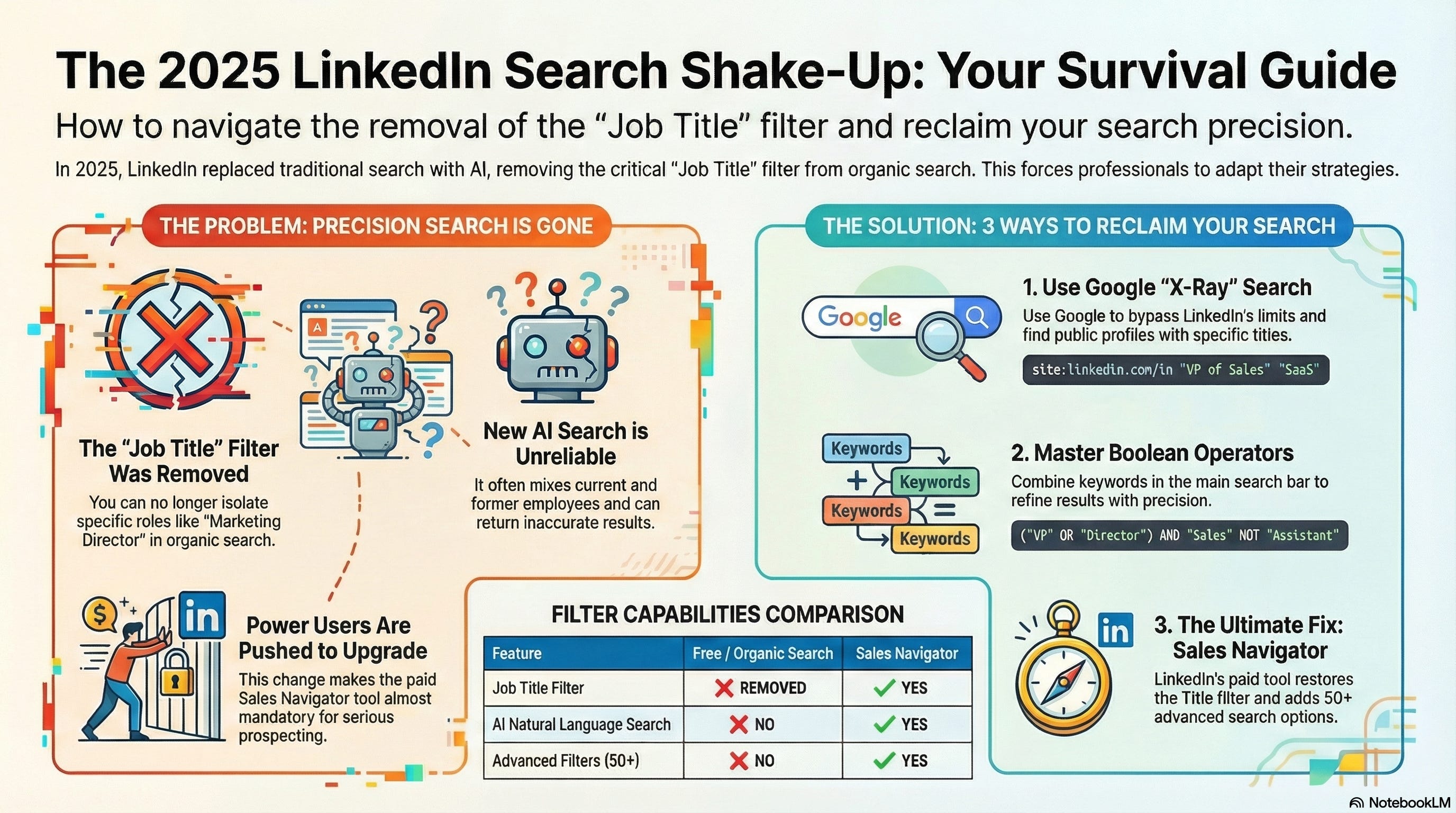
LinkedIn Search in 2025: A Complete Tactical Guide
LinkedIn’s search landscape has fundamentally shifted in 2025—the headline story isn’t removal of features but the arrival of AI-powered natural language search, LinkedIn’s most significant platform change since Sales Navigator launched. For users frustrated by missing filters, the good news: most advanced filters were never removed but migrated to premium tiers years ago. This guide provides the complete breakdown of what’s changed, what’s available, and how to maximize results regardless of your subscription tier.
The truth about the “missing” title filter
The title filter wasn’t removed in 2025—it was progressively moved from free accounts to premium products between 2016 and 2017. Free accounts retain access to title searching through the Keywords section in “All Filters,” where a dedicated Title keyword field exists. The confusion stems from LinkedIn’s interface changes that buried this functionality rather than eliminating it entirely.
What actually disappeared from basic and Premium Business accounts over recent years includes: Years of Experience, Function, Seniority Level, Company Size (for people search), ability to search within Groups, and When User Joined filters. More recently, LinkedIn removed location, company size, and industry filters from Company searches on basic accounts, and quietly eliminated the direct salary filter from job searches in late 2024. These advanced capabilities now live exclusively in Sales Navigator ($99+/month) or LinkedIn Recruiter ($170+/month).
AI-powered search arrives as the headline 2025 feature
LinkedIn launched AI-powered people search in November 2025, representing the most significant search evolution since the platform’s founding. Instead of constructing Boolean queries or selecting filters, users can now type natural language requests like “Find me investors in the healthcare sector with FDA experience” or “Co-founders of productivity companies based in NYC.”
The AI understands context and intent. Queries like “Who in my network can help me understand wireless networks” or “Northwestern alumni who work in entertainment marketing” now return relevant results without manual filter manipulation. The search bar itself changed—eligible users see “I’m looking for...” instead of the traditional “Search” prompt.
Currently rolling out to Premium subscribers in the U.S. first, with broader availability planned. LinkedIn’s product leadership describes this as solving the fundamental limitation that “with lexical search, you had to know the exact title or fiddle with filters to find the right person. If you didn’t, the right connection often went undiscovered.”
Additional 2025 additions include AI-powered job search (May 2025) allowing natural language job queries, a Job Match Score analyzing profile-to-job compatibility, Predictive Career Path Analysis mapping potential trajectories, and enhanced AI-assisted search for Recruiter users that automatically sets filters based on job descriptions.
Complete 2025 filter breakdown by subscription tier
Free LinkedIn accounts offer 15-18 basic filters
Connection filters include 1st, 2nd, and 3rd+ degree connections, “Connections of” to search within a specific person’s network, and “Followers of” for searching creator audiences.
Location filters allow geographic targeting by country, region, or city, with multiple locations permitted simultaneously.
Company filters provide Current Company and Past Company fields accepting multiple company names.
Industry filters offer 150+ industry categories including Technology, Healthcare, Finance, and others.
Education filters enable School filtering by institution name.
Profile and service filters include Profile Language (limited to 5 languages despite LinkedIn supporting 24) and Service Categories for filtering by offered services like coaching, legal, or marketing.
Keyword filters available in “All Filters” include Title, First Name, Last Name, Company, and School fields—the Title keyword field is the critical workaround for job title searching on free accounts.
Open To filters on free accounts only show “Pro Bono Consulting and Volunteering” and “Joining a Nonprofit Board”—notably, the “Open to Work” filter for job seekers requires full LinkedIn Recruiter.
Free account limitations include maximum 1,000 results per search, undisclosed monthly Commercial Use Limits, inability to save searches, and restricted visibility of 3rd-degree profiles.
Sales Navigator provides 50+ advanced filters across two categories
Lead filters (36 filters for people search) include:
Company sub-filters: Current Company, Company Headcount (1-10 through 10,001+), Past Company, Company Type (Private, Public, Non-profit, Government), Company Headquarters Location
Role sub-filters: Function, Current Job Title, Past Job Title, Seniority Level (Entry through CXO/Owner/Partner), Years in Current Company, Years in Current Position
Personal sub-filters: Geography, Industry, First/Last Name, Profile Language (full 24 languages), Years of Experience, Groups membership, School
Buyer Intent: Following Your Company, Viewed Your Profile Recently
Best Path In: Connection degree, Connections of specific person, Past Colleague, Shared Experiences, TeamLink intro
Recent Updates: Changed Jobs (last 90 days), Posted on LinkedIn, Mentioned in News
Workflow: Persona filters, Account/Lead lists, CRM integration (Advanced Plus), interaction history
Account filters (16 filters for company search) include Annual Revenue, Company Headcount, Headcount Growth, Headquarters Location, Industry, Follower count, Department Headcount/Growth, Fortune ranking, and Technologies Used—plus Spotlight filters for job opportunities, recent activities, buyer intent, and connection presence.
LinkedIn Recruiter adds 40+ specialized filters
Key Recruiter-only capabilities include the Open to Work filter (only available in full Recruiter Corporate at $835+/month, not Recruiter Lite), Skills and Assessments verification, Spoken Languages proficiency, Workplace Preferences (Remote/Hybrid/On-site), Salary Expectations, Employment Type, Education Level, and Recently Joined LinkedIn filters.
Recruiter offers unique filter modifiers: “Can have / Must have / Doesn’t have” options for Job Titles, Location, Companies, Skills, Schools, Industries, and Languages—plus Current/Past/Past not Current/Open to Work options for job title searching.
Workarounds that actually work for title searching
Method 1: The “All Filters” keyword approach
The most effective free-account workaround uses the hidden Title keyword field:
Enter any keyword in the main search bar
Click “People” filter
Click “All Filters”
Scroll to the bottom to find the “Keywords” section
Use the Title field specifically—this searches only current job titles, not the entire profile
This matters because the main search bar searches everything: headline, summary, job descriptions, skills, education, and recommendations. Using the Title keyword field dramatically reduces false positives.
Method 2: Boolean operators (critical syntax rules)
Boolean operators work across all LinkedIn tiers with specific requirements:
Operator Syntax Example AND UPPERCASE only Marketing AND SaaS OR UPPERCASE only CEO OR Founder NOT UPPERCASE only Manager NOT Assistant Quotes Straight quotes only “Vice President” Parentheses Group terms (VP OR Director) AND Sales
LinkedIn does NOT support: wildcard (*) searches, + or - operators, or lowercase Boolean operators.
Ready-to-use Boolean template for decision-makers:
(”Vice President” OR “VP” OR “Director” OR “Chief” OR “Head”) AND (”Sales” OR “Marketing”) NOT (”Assistant” OR “Intern” OR “Coordinator”)
Method 3: Google X-ray search bypasses LinkedIn limits
When you hit commercial use limits, Google provides a powerful alternative:
site:linkedin.com/in “Product Manager” “San Francisco”
site:linkedin.com/in (”VP of Marketing” OR “CMO”) SaaS
site:linkedin.com/in “Data Engineer” “Google”
Benefits: No LinkedIn login required, bypasses commercial limits, accesses public profiles outside your network. Limitations: No company size, industry, or experience filtering; only indexes public profiles.
Method 4: Company page browsing
Navigate directly to target company LinkedIn pages, click “People,” and use the built-in employee filters. This method doesn’t count against your main search limits and provides cleaner results for company-specific prospecting.
Best practices for different use cases
Recruiting strategy
Prioritize Job Title with Boolean for variations, Keywords for skills-based filtering, Years of Experience (add +2 years to target to account for LinkedIn inflation), and Current/Past Companies for competitor sourcing.
High-impact recruiting Boolean:
(”Software Engineer” OR “Software Developer”) AND (Python OR Java) NOT (Intern OR Junior OR Entry)
Focus on candidates with 2+ years in current role (may be ready for change), use Saved Searches with alerts for daily new-match notifications, and leverage Recommended Matches AI based on your hiring patterns. Avoid the graduation year filter—boot camps and MOOCs make it unreliable.
Sales prospecting strategy
Use an account-based approach: build company lists first, then find decision-makers within saved accounts. The most valuable Sales Navigator spotlight filters show people who changed jobs in the last 90 days (62% more receptive to outreach), posted on LinkedIn in the last 30 days (active users respond more), and follow your company page (95% more likely to accept InMail).
Boolean for SaaS marketing decision-makers:
(”CMO” OR “VP of Marketing” OR “Head of Growth” OR “Director of Marketing”) AND (”SaaS” OR “Software”) NOT (”Agency” OR “Consultant” OR “Freelance”)
Skip the built-in Seniority Level filter—LinkedIn’s algorithm guessing is notoriously unreliable. Use explicit job titles with Boolean OR instead.
Networking strategy
Leverage 2nd-degree connections for warm intro opportunities, use “Connections of” to search specific people’s networks, and combine School filters with graduation years for alumni outreach. The Shared Experiences filter in Sales Navigator surfaces people with same past companies, schools, or LinkedIn groups—high-value networking targets.
Practical search examples for common scenarios
Finding VPs of Marketing at SaaS companies: Use Boolean (”VP of Marketing” OR “Vice President Marketing” OR “Head of Marketing” OR “CMO”) in the Title field, combine with Industry: Computer Software/SaaS, Company Headcount: 51-500, exclude consultants and agencies.
Identifying hiring managers at target companies: Save target company to Account List, then Lead Search with Title Boolean (”Engineering Manager” OR “Head of Engineering” OR “VP Engineering” OR “Hiring Manager” OR “Talent Acquisition”).
Finding founders in HealthTech: Boolean (”Founder” OR “Co-Founder” OR “CEO” OR “Owner”) AND (”HealthTech” OR “Digital Health”) combined with Company Headcount 1-50 and Years at Current Company under 3 years.
Connecting with recent job changers: Apply Sales Navigator’s “Changed jobs in the last 90 days” Spotlight filter with your title and industry filters. Reach out within the first 2-4 weeks of their new role—new responsibilities mean new priorities and fresh inbox attention.
Key tactical recommendations
Write Boolean queries externally in a text editor before pasting into LinkedIn—the search box frequently deletes long queries and provides no syntax error feedback. Build searches incrementally and test at each step; overly complex strings can cause incomplete results. Use ChatGPT to generate Boolean strings with keyword variations you might miss.
Always add NOT exclusions to Boolean queries and expand your blacklist as you discover irrelevant results. Save high-performing searches, enable alerts for new matches, and review saved searches monthly as job titles and industry terms evolve.
For maximum efficiency: start account-based (companies first, then people), use Boolean in the Job Title field rather than general Keywords for precision, and export/track leads quickly while results are fresh.
BOTTOM LINE…
LinkedIn’s 2025 search reality is more nuanced than “filters were removed.” The platform has bifurcated into a free tier with limited but functional search (including title searching through Keywords), premium tiers with comprehensive filtering, and an emerging AI-powered paradigm that may eventually make traditional filters obsolete. For users frustrated by apparent limitations, the immediate solutions are mastering the “All Filters” keyword fields, Boolean operators, and Google X-ray searches—all of which provide substantial capability without premium subscriptions. The November 2025 AI search rollout signals LinkedIn’s long-term direction: natural language queries replacing filter manipulation, potentially democratizing advanced search capabilities that currently require expensive subscriptions.
Want to learn more join our webinar at www.evyai.com/webinarreplay
Interesting adjustments Joe. I need to dive in and see how I feel about it.